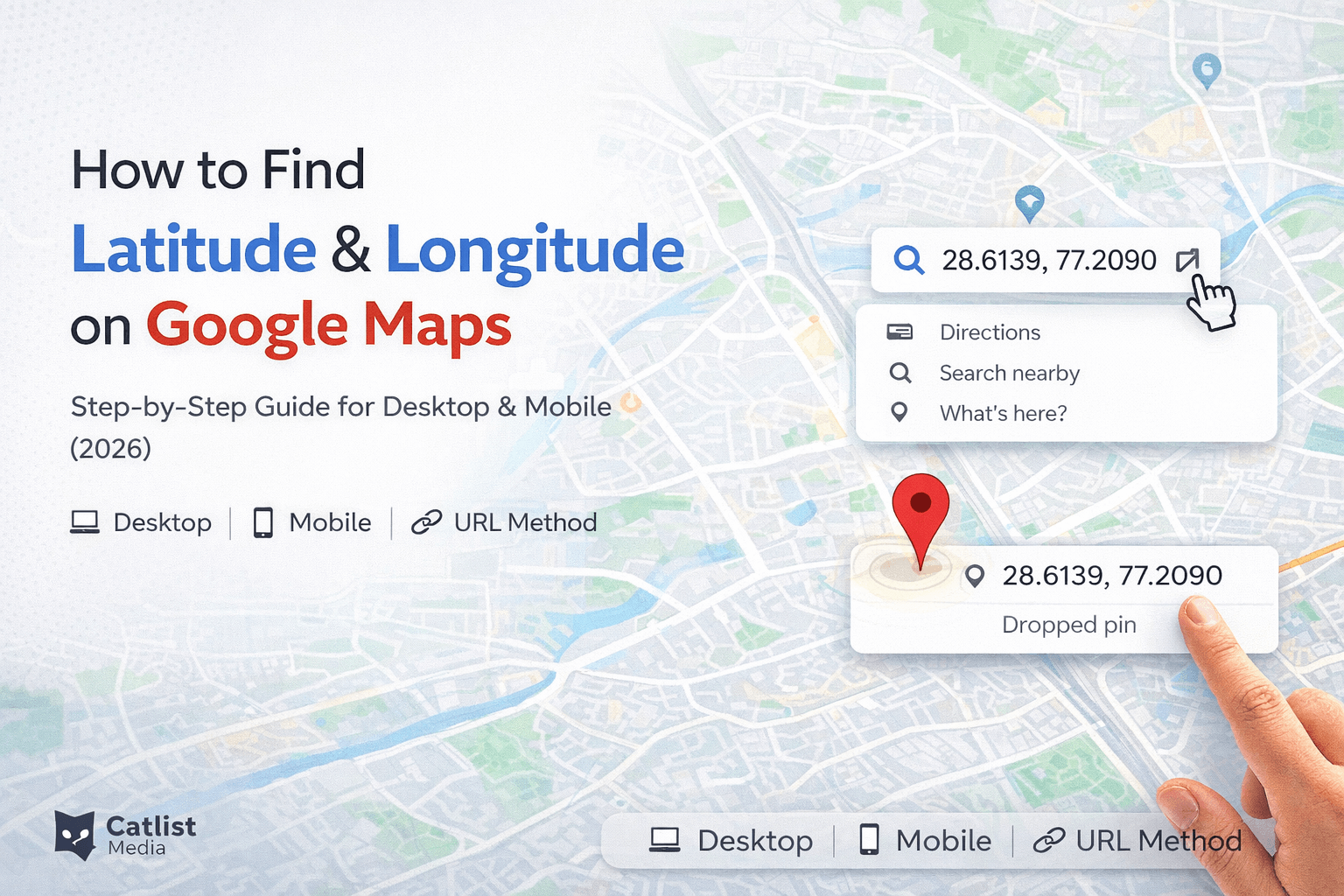
You're trying to send your exact location to someone. Not just the address, but the precise coordinates. Or maybe you're filling out a form that asks for latitude and longitude. Or you're a developer who needs coordinates for an app.
Whatever the reason, you need to find latitude and longitude on Google Maps, and you're not sure how.
Good news: it's actually pretty simple once you know where to look. And Google Maps makes it easier than most people realize.
Let me show you exactly how to get latitude and longitude from Google Maps on desktop, mobile, and everywhere in between.
What Are Latitude and Longitude Anyway?
Before we jump into the how, let's quickly understand what these coordinates actually mean. Don't worry, I'll keep it simple.
Latitude tells you how far north or south a location is from the equator. It ranges from -90 (South Pole) to +90 (North Pole). The equator is 0.
Longitude tells you how far east or west a location is from the Prime Meridian (a line running through Greenwich, England). It ranges from -180 to +180.
Together, these two numbers pinpoint any exact location on Earth. Like an address for the entire planet.
Example:
The Taj Mahal's coordinates are approximately 27.1751 latitude, 78.0421 longitude. Those numbers place it in Agra, India, and nowhere else on Earth.
Now you know what you're looking for. Let's find them.
How to Find Latitude and Longitude on Google Maps: Desktop
This is probably the easiest method. If you're on a computer, follow these steps.
Method 1: Right-Click on the Map
This is the fastest way to get latitude and longitude coordinates on Google Maps.
Step 1:
Open Google Maps in your browser. Go to maps.google.com.
Step 2:
Navigate to the location you want. You can:
- Search for an address in the search bar
- Zoom in and navigate manually on the map
- Click on any location
Step 3:
Right-click on the exact spot you want coordinates for.
Step 4:
A dropdown menu will appear. The very first thing you'll see at the top of that menu is the coordinates. They look like two decimal numbers separated by a comma. For example: 28.6139, 77.2090
Step 5:
Click on those coordinates. They'll automatically copy to your clipboard. That's it. You've got your latitude and longitude.
Pro tip: The coordinates appear at the very top of the right-click menu. You don't need to click any option, they're just displayed there. But clicking on them copies them to your clipboard automatically.
Method 2: Click on the Location to Open the Info Card
This method gives you coordinates with a bit more information.
Step 1:
Open Google Maps and search for your location.
Step 2:
Click on the specific spot on the map.
Step 3:
A small info card will pop up at the bottom of the screen. This card shows the coordinates of that location.
Step 4:
The coordinates are displayed in the card. You can click on them to get more details or copy them.
This method is great when you want to see what a location is called as well as its coordinates.
Method 3: Check the URL in Your Browser
Here's a neat trick most people don't know about.
Step 1:
Open Google Maps and navigate to your location.
Step 2:
Click on the exact spot you want.
Step 3:
Look at the URL in your browser's address bar. It will look something like this:
https://www.google.com/maps/@28.6139,77.2090,15z
Step 4:
The numbers after the @ symbol are your coordinates. 28.6139 is latitude, 77.2090 is longitude. The number after the second comma (15z) is the zoom level, not a coordinate.
This method is really useful when you're already browsing the map and don't want to right-click.
How to Find Latitude and Longitude on Google Maps: Mobile
The mobile process is slightly different but just as easy.
Method 1: Drop a Pin (iPhone and Android)
This works on both iOS and Android Google Maps app.
Step 1:
Open the Google Maps app on your phone.
Step 2:
Find the location you want. You can search for it or navigate to it manually.
Step 3:
Long press (press and hold) on the exact spot on the map for about a second.
Step 4:
A red pin will drop on that location. At the bottom of the screen, a card will pop up showing the location details.
Step 5:
Look at the coordinates displayed in the card. They'll be shown as two decimal numbers, like 28.6139, 77.2090.
Step 6:
Tap on the coordinates or swipe up on the card to see them more clearly and get options to share or copy them.
Method 2: Search for a Place and Get Coordinates
If you know the place name but need coordinates:
Step 1:
Open Google Maps app.
Step 2:
Search for the place in the search bar. For example, "India Gate, New Delhi."
Step 3:
Tap on the location in the search results.
Step 4:
Swipe up on the information card at the bottom of the screen.
Step 5:
Scroll down in the card to find the coordinates listed.
Step 6:
Tap on the coordinates to copy them or share them.
Method 3: Share Location with Coordinates
This method is useful when you want to share your current or any location with someone.
Step 1:
Open Google Maps and find your location (or drop a pin anywhere).
Step 2:
Tap on the info card at the bottom.
Step 3:
Tap the Share button.
Step 4:
This creates a shareable link that includes the coordinates. The person receiving it can see the exact location.
Note: If you want just the coordinates without a link, use the long press method instead.
How to Find Your Current Location's Coordinates
Want to know where you are right now? Here's how to find latitude and longitude coordinates for your current position.
On desktop:
- Open Google Maps
- Click the blue dot that shows your current location (or click the "locate me" button)
- Right-click on the blue dot
- Your coordinates appear at the top of the menu
On mobile:
- Open Google Maps app
- Tap the blue dot showing your current location
- A card appears at the bottom with your location details
- Swipe up on the card to see your coordinates
If the blue dot isn't showing:
Make sure location services are enabled on your device and Google Maps has permission to access your location.
Google Maps Find Latitude and Longitude: Understanding the Numbers
You've got your coordinates. Now let's make sure you understand what they mean.
Reading the coordinates:
Coordinates look like this: 28.6139, 77.2090
The first number (28.6139) is latitude.
- Positive = North of equator
- Negative = South of equator
The second number (77.2090) is longitude.
- Positive = East of Prime Meridian
- Negative = West of Prime Meridian
India-specific context:
All of India falls in positive latitude (north) and positive longitude (east). So Indian coordinates always have two positive numbers. For example, Mumbai is approximately 19.0760, 72.8777.
Decimal vs Degrees Minutes Seconds (DMS):
Google Maps shows coordinates in decimal format (28.6139). But some applications need them in DMS format (28 degrees 36 minutes 50.04 seconds).
You can convert between them, but for most purposes (maps, apps, sharing locations), decimal format works perfectly.
How to Enter Coordinates into Google Maps
Finding coordinates is one thing. But what if you have coordinates and want to find that location on the map?
On desktop:
- Open Google Maps
- Click in the search bar
- Type the coordinates directly. Use this format: 28.6139, 77.2090
- Press Enter
- Google Maps will take you directly to that location
On mobile:
- Open Google Maps app
- Tap the search bar
- Type the coordinates: 28.6139, 77.2090
- Tap Search
- The map will navigate to those exact coordinates
Important formatting rules:
- Put a comma between latitude and longitude
- Use a period (not comma) for decimal points
- Make sure you enter latitude first, then longitude
- Negative numbers need a minus sign before them
This is incredibly useful if someone sends you coordinates and you need to find that location.
Common Uses for Latitude and Longitude Coordinates
Why do people actually need coordinates from Google Maps? Here are the most common reasons.
Navigation to remote locations
When an address doesn't exist or is hard to find. Think rural areas, national parks, remote construction sites.
Sharing exact meeting points
"Meet me at 28.6139, 77.2090" is much more precise than "near the entrance."
App development
Developers need coordinates to build location-based features in apps and websites.
Agriculture and land management
Farmers and land surveyors use coordinates to mark specific areas.
Emergency services
In emergencies, coordinates can help locate you faster than an address.
Drone operations
Drone pilots often need precise coordinates for flight planning.
Travel planning
Travelers mark specific spots like hiking trails, viewpoints, and campsites.
Local SEO and business listings
Businesses need precise coordinates for Google Business Profile and other listings.
Speaking of local SEO, if you're a business that needs your location properly set up online, check out our services to see how we can help optimize your local presence.
Latitude and Longitude Coordinates on Google Maps: Tips and Tricks
Here are some pro tips that make working with coordinates easier.
Tip 1: Copy coordinates from the right-click menu
On desktop, right-clicking and then clicking the coordinates copies them automatically. You don't need to select and copy manually.
Tip 2: Use the search bar as a converter
If you have coordinates in one format and need to see them on the map, just paste them into the search bar. Google Maps handles most formats.
Tip 3: Check coordinates before sharing
After you find coordinates, drop them back into Google Maps to verify they point to the right spot. A simple sanity check that can save embarrassment.
Tip 4: Use Google Maps with plus codes
Google Maps also offers Plus Codes, which are short codes that represent locations. These can be easier to share than long coordinate strings.
Tip 5: Satellite view helps with precision
When you need very precise coordinates, switch to satellite view. This helps you drop pins on the exact spot rather than guessing on a standard map.
Tip 6: Mobile long press is more precise on satellite
If you switch to satellite view on mobile before long pressing, you can see exactly where you're dropping your pin.
Tip 7: Google Sheets can handle coordinates
You can paste coordinates directly into Google Sheets and use formulas to calculate distances, map multiple locations, and more.
Troubleshooting: When Coordinates Don't Work
Sometimes things don't go as expected. Here's how to fix common issues.
Problem: Coordinates show the wrong location
Most likely cause: You entered longitude first instead of latitude. Always enter latitude first.
Fix: Reverse the two numbers and try again.
Problem: Can't find the right-click menu option
Most likely cause: You might not be right-clicking on the map itself, or you're using a touchpad that doesn't have a right-click function.
Fix: On Mac, use Ctrl+Click or two-finger tap. Make sure you're clicking on the actual map, not a marker or label.
Problem: Mobile app won't drop a pin
Most likely cause: You might not be pressing long enough, or you're tapping on a labeled location.
Fix: Press and hold for at least one second on an empty area of the map. Avoid pressing on existing markers or labels.
Problem: Coordinates copied incorrectly
Most likely cause: Extra spaces or characters got included.
Fix: When you paste coordinates, make sure the format is: number, space, number (28.6139, 77.2090)
Problem: GPS location is inaccurate
Most likely cause: Poor GPS signal, location services off, or VPN affecting location.
Fix: Enable location services, turn off VPN, and make sure Google Maps has location permission. Move to an open area for better GPS signal.
How to Get Latitude and Longitude from Google Maps: Different Devices Summary
Let me summarize all methods in a quick reference table.
| Device | Method | Steps |
| Desktop Browser | Right-click on map | Right-click location, coordinates appear at top |
| Desktop Browser | Click location | Click spot, check info card at bottom |
| Desktop Browser | URL bar | Look at numbers after @ in browser URL |
| Mobile (Android/iOS) | Long press | Press and hold, coordinates in bottom card |
| Mobile (Android/iOS) | Search a place | Search, swipe up card, scroll to coordinates |
| Mobile (Android/iOS) | Share location | Drop pin, tap share, link includes coordinates |
All of these methods work reliably. Choose the one that fits your situation best.
How Businesses Use Location Coordinates
If you're running a business, knowing how to find latitude and longitude on Google Maps is actually quite useful.
Google Business Profile setup
When you set up or verify your business on Google, precise coordinates ensure your pin drops in the right spot on Google Maps.
Website contact page
Embed a Google Map with exact coordinates so customers can find you easily.
Delivery and logistics
For businesses with delivery operations, coordinates help drivers reach exact locations, especially in areas where addresses are hard to find.
Local SEO
Accurate location data, including coordinates, helps your business appear in "near me" searches. This is crucial for driving foot traffic.
Event planning
When hosting events at specific locations, sharing coordinates helps attendees find the exact spot, not just the general area.
Alternative Ways to Find Coordinates (Not Just Google Maps)
Google Maps is the most popular option, but here are some alternatives.
Google Earth
Open Google Earth and hover over any location. The coordinates appear at the bottom of the screen automatically as you move your cursor.
Bing Maps
Right-click any location on Bing Maps and select "What's here?" to see coordinates.
GPS devices
Dedicated GPS devices show your current coordinates in real time. Useful for hiking and outdoor activities.
iPhone built-in Compass app
Open the Compass app and scroll down to see your current latitude and longitude at the bottom of the screen.
Android GPS apps
Several free apps on Google Play show GPS coordinates in real time.
What3words
A different coordinate system that divides the world into 3m x 3m squares, each with a unique three-word address. Useful when numbers are hard to remember.
For most purposes, Google Maps is the easiest and most reliable option. But it's good to know alternatives exist.
FAQs About Latitude and Longitude on Google Maps
How do I find latitude and longitude on Google Maps on mobile?
Open the Google Maps app, long press on any location for about a second, and a pin will drop. A card appears at the bottom with the coordinates. You can also tap an existing location and swipe up on the info card to see coordinates.
Can I copy coordinates from Google Maps?
Yes. On desktop, right-click on any location and click the coordinates that appear at the top of the menu. They'll be automatically copied to your clipboard. On mobile, tap the coordinates in the info card to copy them.
How do I search for a location using coordinates?
Simply type or paste the coordinates into the Google Maps search bar in this format: 28.6139, 77.2090. Press enter and Google Maps will take you to that exact location.
Why are my Google Maps coordinates not accurate?
On mobile, GPS accuracy depends on signal strength. Make sure location services are enabled and you're not using a VPN. On desktop, Google Maps estimates your location based on your internet connection, which may be less accurate.
What format does Google Maps use for coordinates?
Google Maps uses decimal degrees format (like 28.6139, 77.2090). Some older applications use degrees, minutes, seconds (DMS) format instead. You can convert between the two formats if needed.
How do I share location coordinates with someone?
On mobile, drop a pin, tap the info card, and tap share. On desktop, right-click on the location and click the coordinates to copy them, then paste them in a message.
Is latitude or longitude listed first in Google Maps?
Latitude is always listed first, longitude second. So in "28.6139, 77.2090," the number 28.6139 is latitude (north/south) and 77.2090 is longitude (east/west).
Can I find coordinates without internet on Google Maps?
If you've downloaded offline maps, you can access the map without internet. But the blue dot for your location still requires either GPS or internet for accuracy.
Final Thoughts: Now You Can Find Coordinates Anywhere
Finding latitude and longitude on Google Maps is one of those skills that seems technical but is actually really simple once you know the trick.
Quick recap of the easiest methods:
- Desktop: Right-click any spot, coordinates appear immediately at top of menu
- Mobile: Long press any spot, coordinates appear in the bottom card
- URL trick: Look at the numbers after @ in your browser's address bar
Whether you need coordinates for navigation, app development, business listings, or just sending your exact location to a friend, Google Maps makes it straightforward.
The most important thing to remember: latitude comes first, longitude comes second. As long as you keep that straight, you'll be fine.
Now you know how to find latitude and longitude on Google Maps like a pro. Go try it right now with a location you know well, like your home or office. Once you've done it once, you'll never forget how.
Need help setting up your business location properly on Google Maps or improving your local SEO so customers can actually find you online? Let's talk. We'll make sure your business shows up in the right place at the right time.