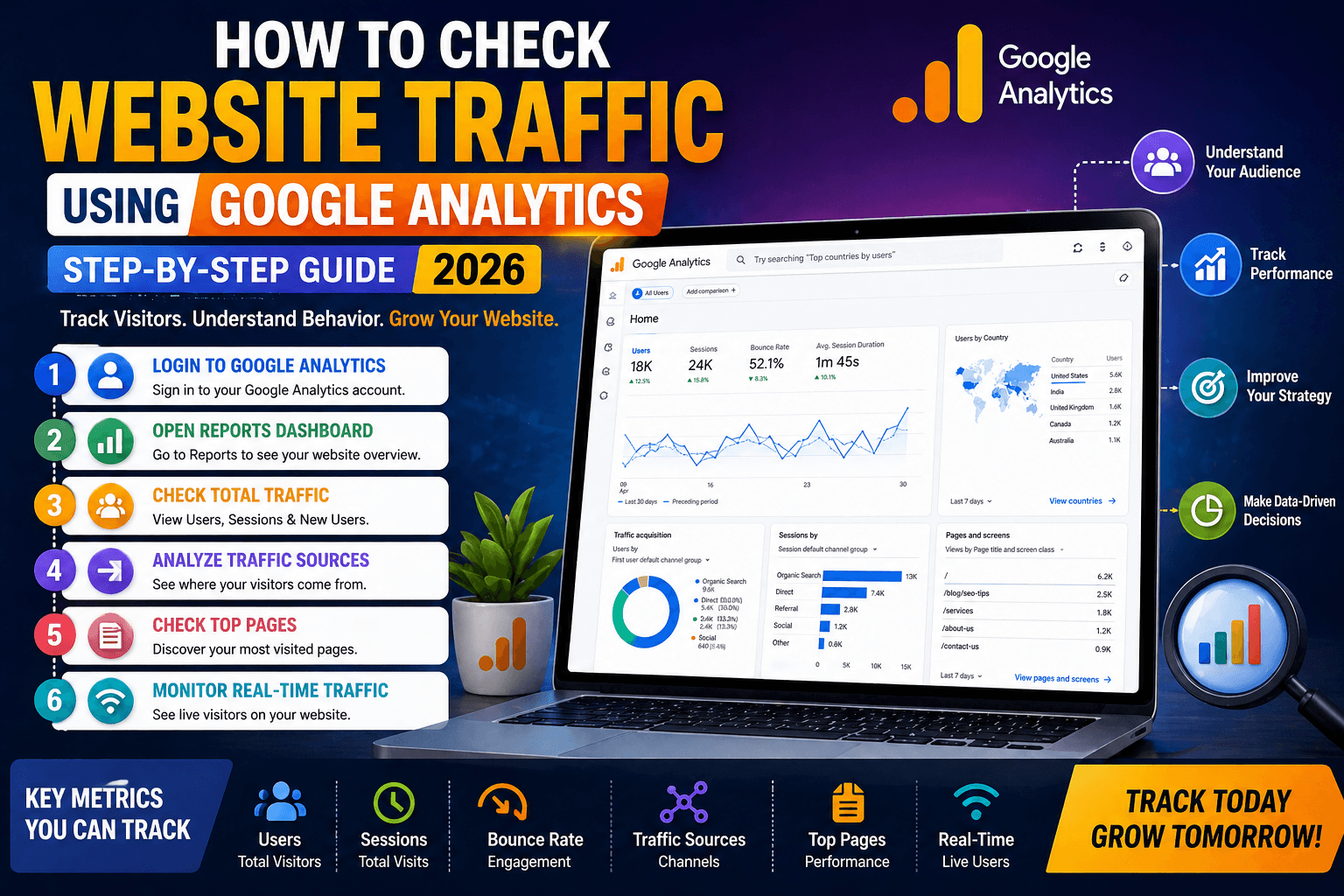
If you’ve ever launched a website and wondered,
“Is anyone even visiting this?”
You’re not alone.
Most website owners post content, run ads, or do SEO… but never really track what’s working.
That’s where Google Analytics comes in.
It helps you see:
- How many people visit your website
- Where they come from
- What they do on your site
And once you understand this, everything changes.
Let’s break it down step by step.
What is Google Analytics?
Google Analytics is a free tool by Google that helps you track and analyze website traffic.
It shows you:
- Number of visitors
- Traffic sources (Google, social media, direct)
- User behavior
- Popular pages
In simple words, it tells you what’s working and what’s not.
Why Tracking Website Traffic is Important
Let’s keep it real.
If you don’t track traffic:
You’re guessing
If you track traffic:
You’re optimizing
Here’s why it matters:
- You can improve your SEO strategy
- You can identify top-performing content
- You can fix pages that don’t perform
If you’re serious about SEO growth, read this guide on mastering seo with ai tools
How to Check Website Traffic Using Google Analytics
Now let’s get practical.
Step 1: Login to Google Analytics
Go to Google Analytics and log in to your account.
If you haven’t set it up yet, you’ll need to:
- Create an account
- Add your website
- Install tracking code
Step 2: Open Reports Dashboard
Once logged in:
Click on “Reports”
Here you’ll see:
- Overview of traffic
- Real-time users
- Audience insights
Step 3: Check Total Website Traffic
Go to:
Reports → Acquisition → Traffic Acquisition
Here you’ll find:
- Users
- Sessions
- New visitors
What These Metrics Mean:
| Metric | Meaning |
| Users | Total visitors |
| Sessions | Total visits |
| New Users | First-time visitors |
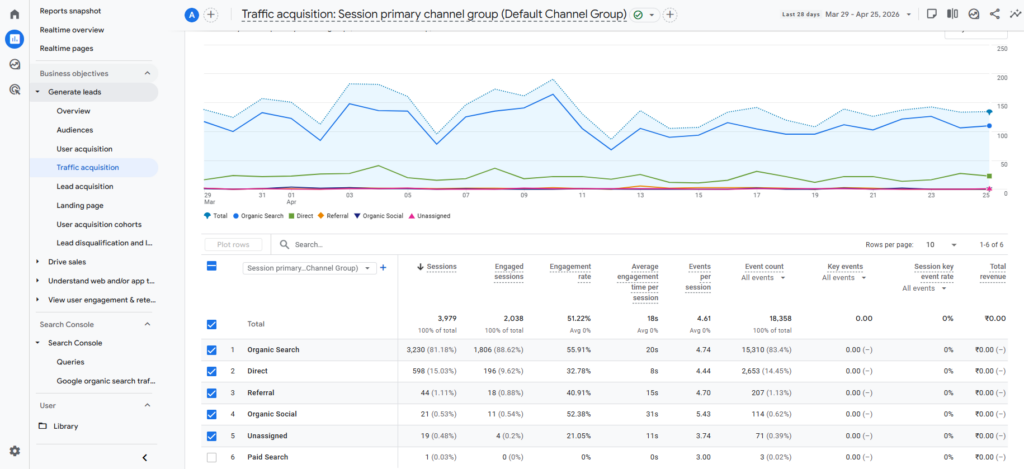
Step 4: Check Traffic Sources
This is where things get interesting.
You can see where your traffic comes from:
- Organic (Google search)
- Direct (typing URL)
- Social (Instagram, Facebook)
- Referral (other websites)
This helps you understand which channel is working best.
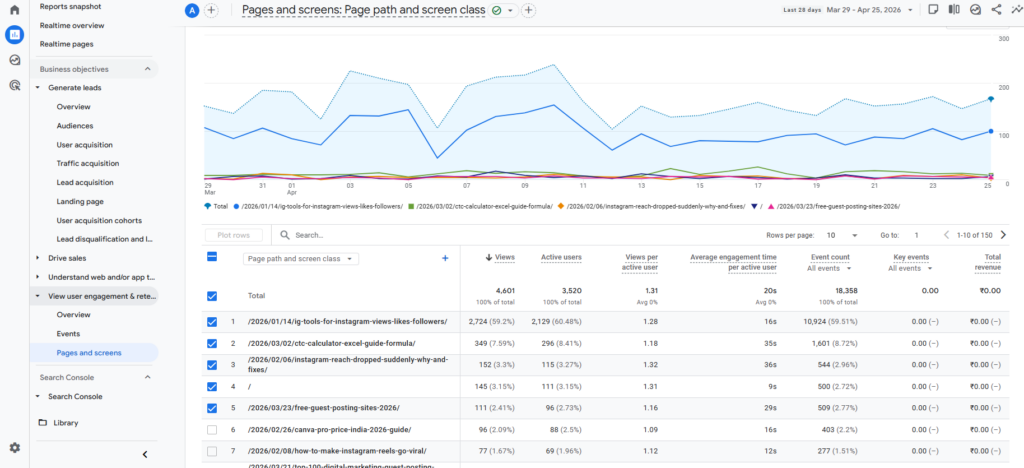
Step 5: Check Top Pages
Go to:
Reports → Engagement → Pages and Screens
You’ll see:
- Most visited pages
- Time spent on page
- Engagement rate
This shows what content is performing.
Step 6: Check Real-Time Traffic
Want to see live visitors?
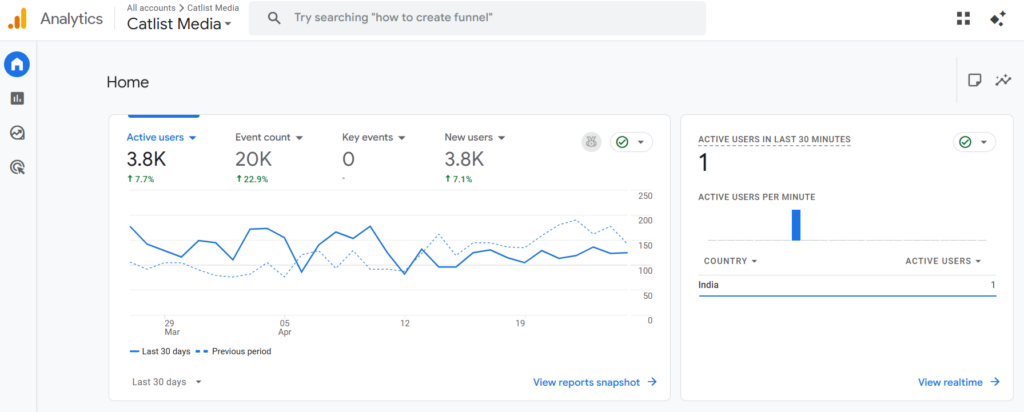
Go to “Realtime”
You’ll see:
- Active users
- Pages they are viewing
Google Analytics dashboard
Traffic acquisition report
Pages and screens report
How Google Analytics Helps in SEO
This is where most people miss the opportunity.
Google Analytics helps you:
- Identify high-performing keywords
- Improve low-performing pages
- Increase user engagement
For example:
If one blog is getting traffic → optimize it further
If one blog is not → fix it
This is how real SEO works.
To understand SEO investment better, check SEO cost in India in 2026
Pro Tips (Advanced Users)
Want to go deeper?
- Track conversions (form submissions, clicks)
- Set up goals in Analytics
- Use filters to remove spam traffic
- Combine with Google Search Console
Common Mistakes to Avoid
Let’s save you time.
❌ Not installing tracking code properly
❌ Ignoring traffic sources
❌ Only checking total visitors
❌ Not analyzing user behavior
These mistakes lead to wrong decisions.
Google Analytics vs Other Tools
| Tool | Best For |
| Google Analytics | Website traffic tracking |
| Google Search Console | SEO performance |
| SEMrush | Keyword tracking |
Use them together for best results.
Real Example
Let’s say:
You publish a blog.
After 7 days:
You check Analytics
You find:
- 500 visitors
- Most traffic from Google
- One page getting 70% traffic
Now you:
Optimize that page
Result:
More traffic + better ranking
FAQs
How do I check website traffic for free?
You can use Google Analytics for free.
What is the best tool to track website traffic?
Google Analytics is the most widely used tool.
How accurate is Google Analytics?
It is highly accurate for tracking user behavior.
Can I track traffic of other websites?
No, Google Analytics only tracks your website.
Final Takeaway
If you’re not tracking your website traffic, you’re missing the biggest opportunity.
Because:
Data tells you what works
Data helps you grow
Start using Google Analytics today.
Want Traffic Like This for Your Website?
This blog ranks because of smart SEO strategy.
Imagine your business getting:
- More traffic
- Better leads
- Higher conversions